@Sanches8844 подскажите пожалуйста насчет TCP и UDP портов
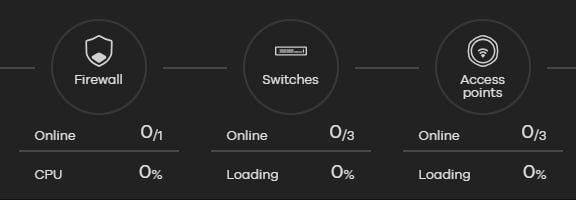
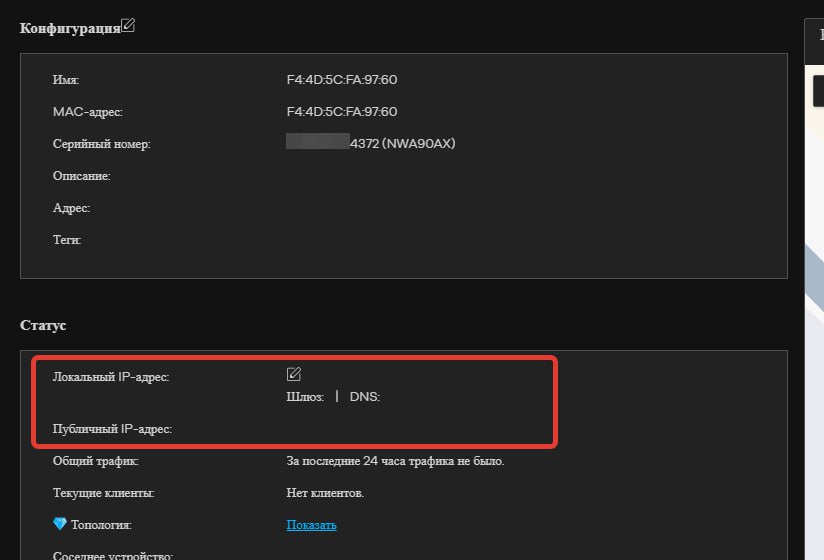
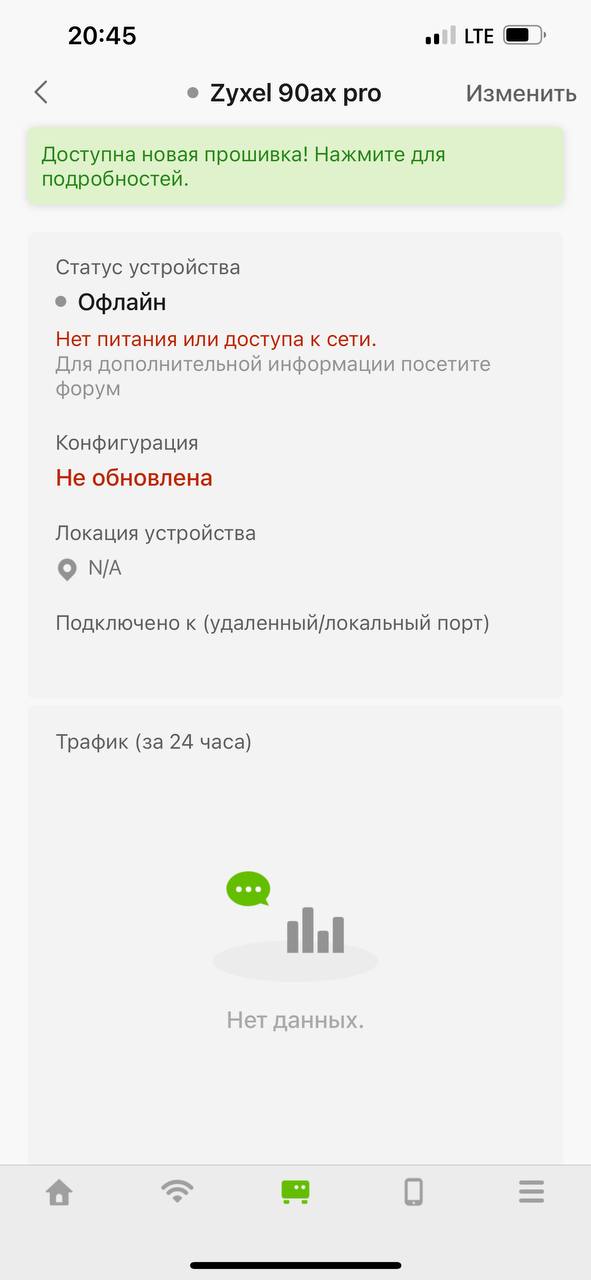
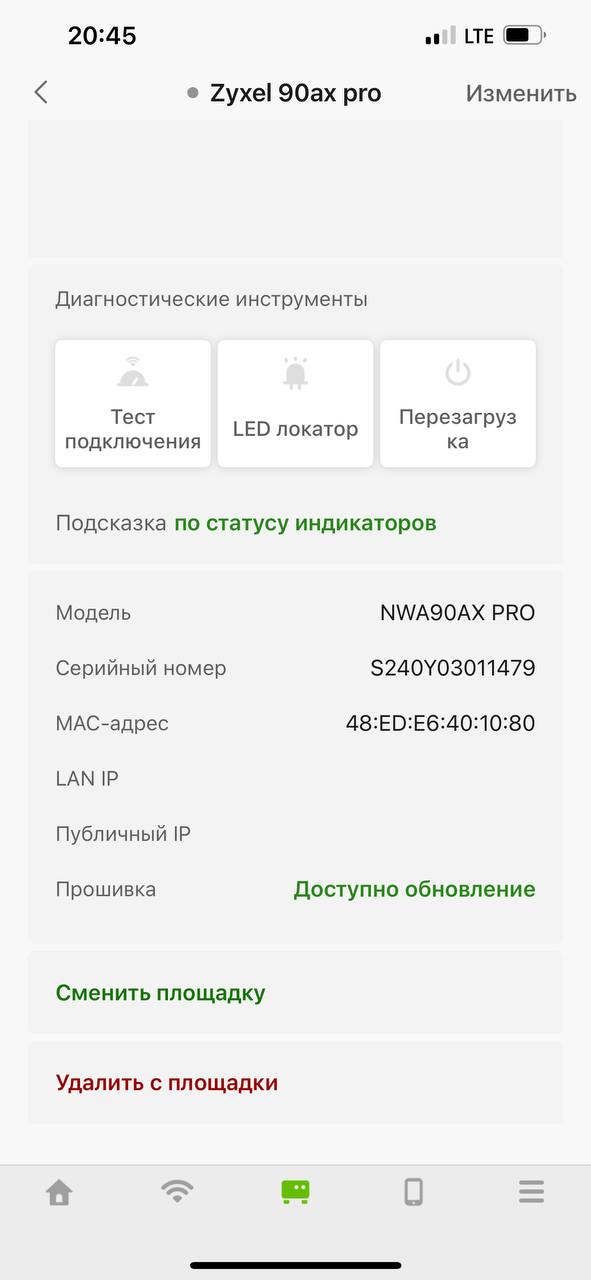
I cannot access a Nebula Device that I have registered in NCC or the Nebula Device appears offline in NCC.
• Check if the TCP/UDP port is blocked by your network’s firewall rule or ISP. Click Help > Support tools > Firewall information to view information required for firewall rules to allow management traffic between NCC and Nebula Devices on your sites.
• Check the Nebula Device’s hardware connections, and make sure the LEDs are behaving as expected. See the Quick Start Guide.
• If the LEDs still do not turn on, you may have a hardware problem. In this case, you should contact your local customer support.
• Make sure the Nebula Device is connected to the Internet.
• For Mobile Routers, make sure a valid SIM card is inserted in the SIM card slot.
• Make sure the Mobile Router is located where the cellular signal is strong.
• For ZyWALL USG FLEX / ATP / USG20(W)-VPN Series devices with Nebula native mode as the deployment method, make sure you perform the steps for Nebula native mode on the Nebula Device; see Nebula Native Mode for information.
If you select Zero Touch Provision mode as the deployment method. Make sure you perform the steps for Zero Touch Provision mode on the Nebula Device, see Zero Touch Provision Mode for information.
• Check if the WAN IP address is configured on the Nebula Device.
• Check if the Nebula Device can access the NCC server’s domain through SSH/Console and enter ‘nslookup d.nebula.zyxel.com’. If the Nebula Device shows ‘unknown host’, check your DNS server setting or use ‘8.8.8.8’ as the DNS server on the Nebula Device.
• The Nebula Devices will apply the site-wide password after getting online on NCC. Check the login credential by going to Site-wide > Configure > Site settings: Local credentials.
• Specify the Port number and click Establish using Remote Access in the following screens to obtain real-time logs and data from the Nebula Device.
• Site-wide > Devices > Firewall
• Site-wide > Devices > Security gateway
• Site-wide > Devices > Access points
Remote Access to Nebula Access Points is available to the organization owner, organization administrators with full privileges, and site administrators with full privileges in Nebula Pro Pack license only.
Remote Access to Nebula Security Firewalls and Security Gateways is available to the organization owner in Nebula Pro Pack license only.
• Make sure that your Nebula Device can connect to the NCC by checking your network’s firewall/security settings. The following ports must be allowed:
• TCP: 22, 443, 4335 and 6667
Go to Help > Support tools > Firewall information to find the latest port information.
• Make sure that your Nebula Device can synchronize with NTP (Network Time Protocol) through the following port:
• UDP: 123
• Make sure that your Nebula Device can resolve the Nebula Cloud Management (NETCONF) domain name d.nebula.zyxel.com.
• Changing the MTU (Maximum Transmission Unit) size in Site-wide > Configure > Firewall > Interface > WAN/LAN interface configuration may cause the Nebula Switches to appear offline. Make sure that the MTU size is not smaller than 1500 bytes.
I cannot see my Nebula Devices in the NCC Dashboard or the corresponding Nebula Device monitor page.
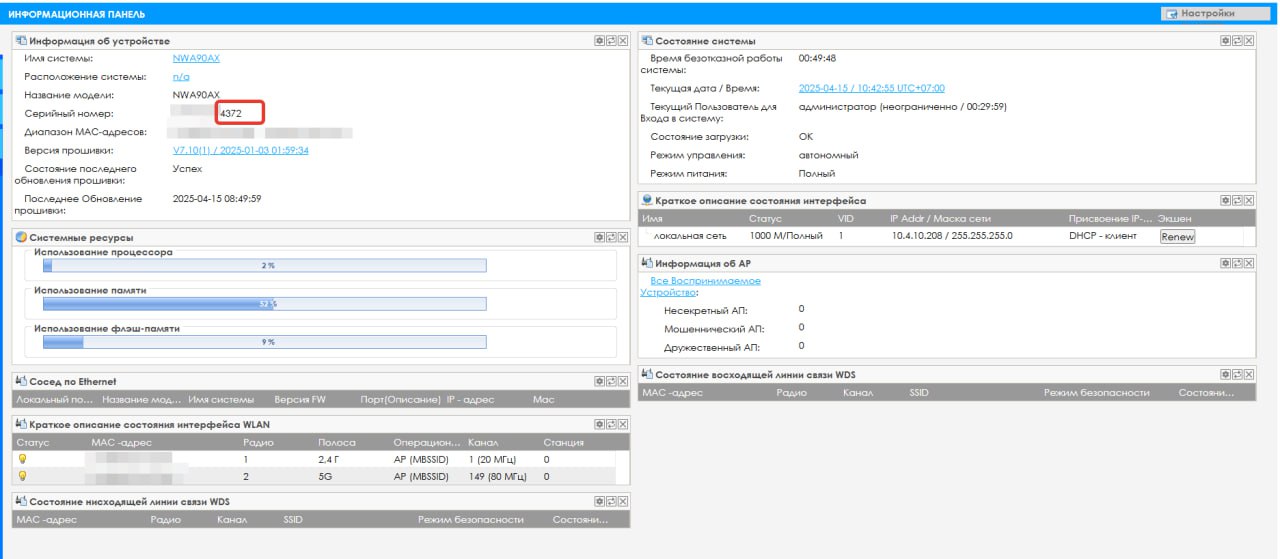
• Check the Nebula Device’s local Web Configurator’s Dashboard. The Cloud Control Status displays the status of the Nebula Device’s Internet and NCC connection and registration status. Make sure that the Nebula Device has NCC Discovery enabled.
• If the Nebula Device cannot connect to the Internet or NCC, hover the mouse over the Internet circle to check the error message. Check your local network settings.
• Make sure that your Nebula Device can connect to the NCC by checking your network’s firewall/security settings. The following ports must be allowed:
• TCP: 22, 443, 4335 and 6667
• UDP: 123
Go to Help > Support tools > Firewall information to find the latest port information.
• Make sure that you have registered your Nebula Devices with the NCC. See License & Inventory Overview Screen.
 Гайдаев Никита




 Александр

 Валентин
 Sergey