You can also parallelize it
What does parallelize mean?
 yuuki
yuuki


 Manuele
But don't mind
yuuki
An int variable that counts how many times a number is there
But..
The frequency of every element present in the given array cannot be found this way..
 klimi
klimi
then do two arrays
Manuele
Oh every element?
Manuele
You should before check how many different elements there are to find the right size of the second array
yuuki
Is there a better way of doing this?
yuuki
You should before check how many different elements there are to find the right size of the second array
True. Finding the distinct values is the first priority.
klimi
is it thing to do struct with those two arrays?
yuuki
Why structures?
klimi
idk :D
yuuki
😅
Okay... The one approach that immediately comes to mind is to use arrays..
And as @KlimiCZ mentioned before, a Map incase of CPP..
are there any more approaches for this?
klimi
i don't think so...
 olli
olli
When using arrays to count elements, you need to search the arrays whether you've already seen the element. This will in general probably be as good as counting the occurence of each member in the original array.
If you are allowed to modify the array, then sort it. So you can find the highest occurence in a single iteration over the array.
If you use C++ use maps
 Anonymous
Why not sort the array then increase a flag value every time a new value is discovered?
Anonymous
If the order of the array doesn't matter (or copy it if it does)
yuuki
Why not sort the array then increase a flag value every time a new value is discovered?
That's a good idea.. 👍
Anonymous
Which is what Olli said
Anonymous
I just didn't read his message while I was writing
yuuki
That can only suggest that my English needs improvement.. 😅
yuuki
Also,
Can someone please tell me when to use bit-wise operators?
 .
.
 yuuki
yuuki
I know of few uses...
Such as,
finding the last bit of a number.
Shifting the bits.
But, what practical use do they have in a programming point of view?
Surely, they were designed for a purpose... 😥
.
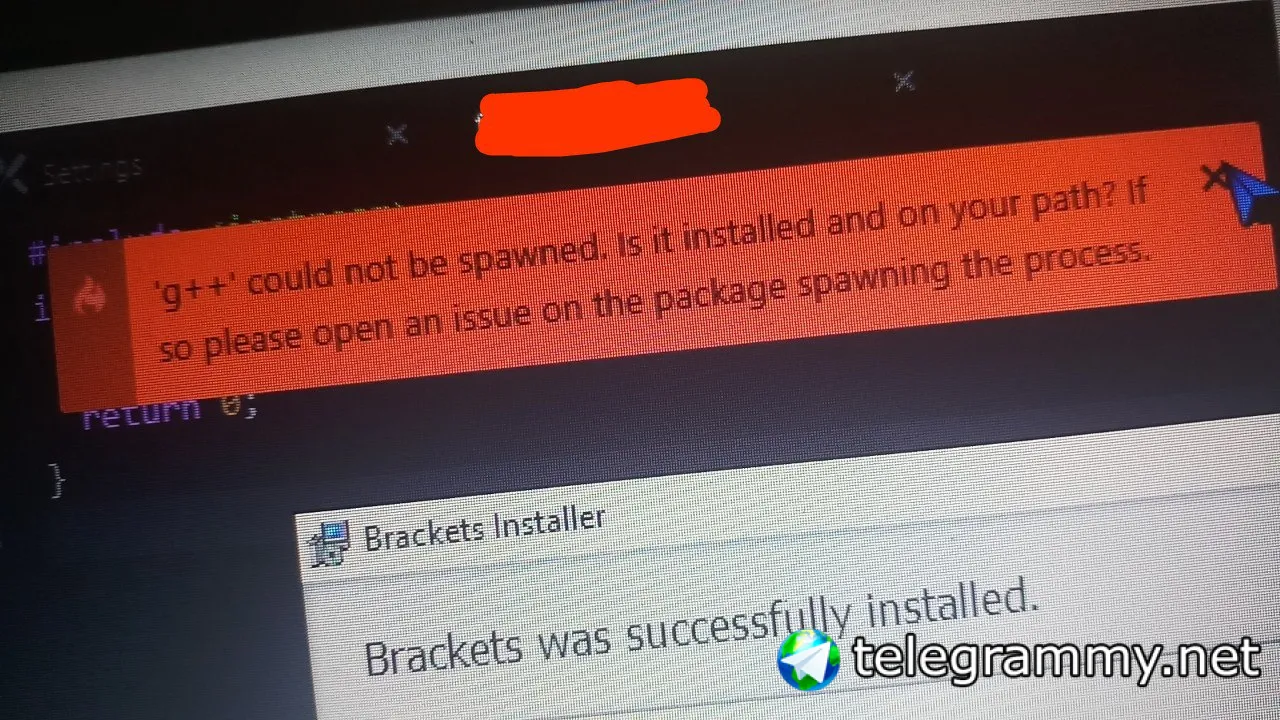
Yup
Anonymous
Is it in your path?
Anonymous
It tells you what to do
.
I didn't get that part
klimi
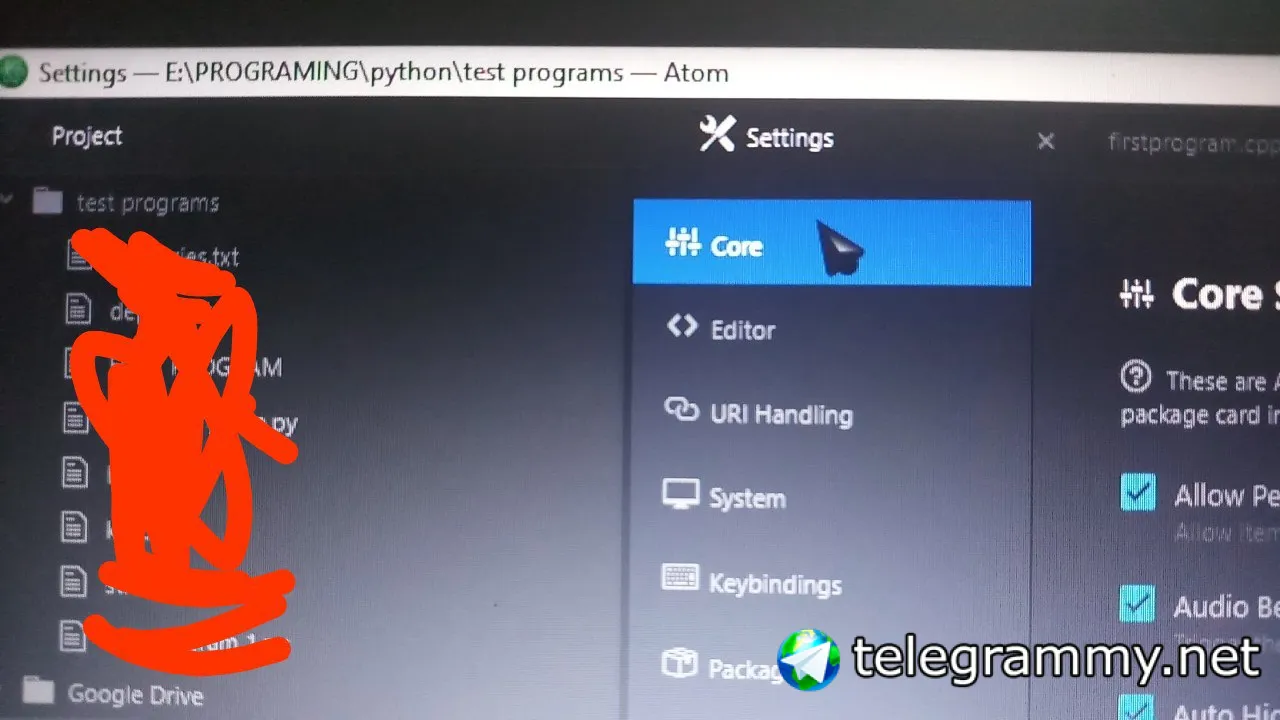
how did you install it?
klimi
oh
klimi
its windows...
.
Yeah
klimi
you probably need to update your path
Anonymous
Do you have cygwin or something?
Anonymous
MinGW?
klimi
Windows
Windows 10 and Windows 8
In Search, search for and then select: System (Control Panel)
Click the Advanced system settings link.
Click Environment Variables. In the section System Variables, find the PATH environment variable and select it. Click Edit. If the PATH environment variable does not exist, click New.
In the Edit System Variable (or New System Variable) window, specify the value of the PATH environment variable. Click OK. Close all remaining windows by clicking OK.
Reopen Command prompt window, and run your java code.
Windows 7
From the desktop, right click the Computer icon.
Choose Properties from the context menu.
Click the Advanced system settings link.
Click Environment Variables. In the section System Variables, find the PATH environment variable and select it. Click Edit. If the PATH environment variable does not exist, click New.
In the Edit System Variable (or New System Variable) window, specify the value of the PATH environment variable. Click OK. Close all remaining windows by clicking OK.
Reopen Command prompt window, and run your java code.
Windows Vista
From the desktop, right click the My Computer icon.
Choose Properties from the context menu.
Click the Advanced tab (Advanced system settings link in Vista).
Click Environment Variables. In the section System Variables, find the PATH environment variable and select it. Click Edit. If the PATH environment variable does not exist, click New.
In the Edit System Variable (or New System Variable) window, specify the value of the PATH environment variable. Click OK. Close all remaining windows by clicking OK.
Reopen Command prompt window, and run your java code.
Windows XP
Select Start, select Control Panel. double click System, and select the Advanced tab.
Click Environment Variables. In the section System Variables, find the PATH environment variable and select it. Click Edit. If the PATH environment variable does not exist, click New.
In the Edit System Variable (or New System Variable) window, specify the value of the PATH environment variable. Click OK. Close all remaining windows by clicking OK.
Reopen Command prompt window, and run your java code.
.
 Anonymous
.
Anonymous
.
Got it!
Sushil
/saved
 Ибраги́м
 Maaf
Maaf
Wow
 Elton
Elton
Am interested in C++ kindly reccomend me the best tutorials I can use
Elton
thanks
Ибраги́м
error: ‘cunt’ is not a member of ‘std’
 Dima
Dima
lol this is c/c++ group
klimi
how is it relative to c/c++?
Anonymous
/rules
Mat
/warn promotions AND spam
Mat
Read the rules guys
klimi
+ it's non c/c++ relative, 2/3 videos are non english too
Mat
Ch You just entered here spamming your channel/videos :/
Mat
Not promoting your channel can be a good start
Mat
Talking about c/c++ related stuff a good second step
Anonymous
Hello!
Anonymous
World
Anonymous
Welcome
Thanks man!
Am very grateful to be here!
And I hope I can learn something from you guys
Anonymous
Develop an application that allows a student to open an account. The account may be a savings account or a current account. The student has to submit his/her names, faculty, course, year of study, University, telephone contact and e-mail address. The student can withdraw, deposit and perform balance enquiries with the account. If the student has opened a savings account, he/she is required to submit a physical address as well. For a current account, the student submits his/her date of birth and is also issued with a cheque book. (NB: Implement the application using C++ programming language)
Anonymous
Anonymous
I have finally tried this
klimi
Okay